Browser settings
The Browser tab holds the clipper's bookmarklet and the options built into it.
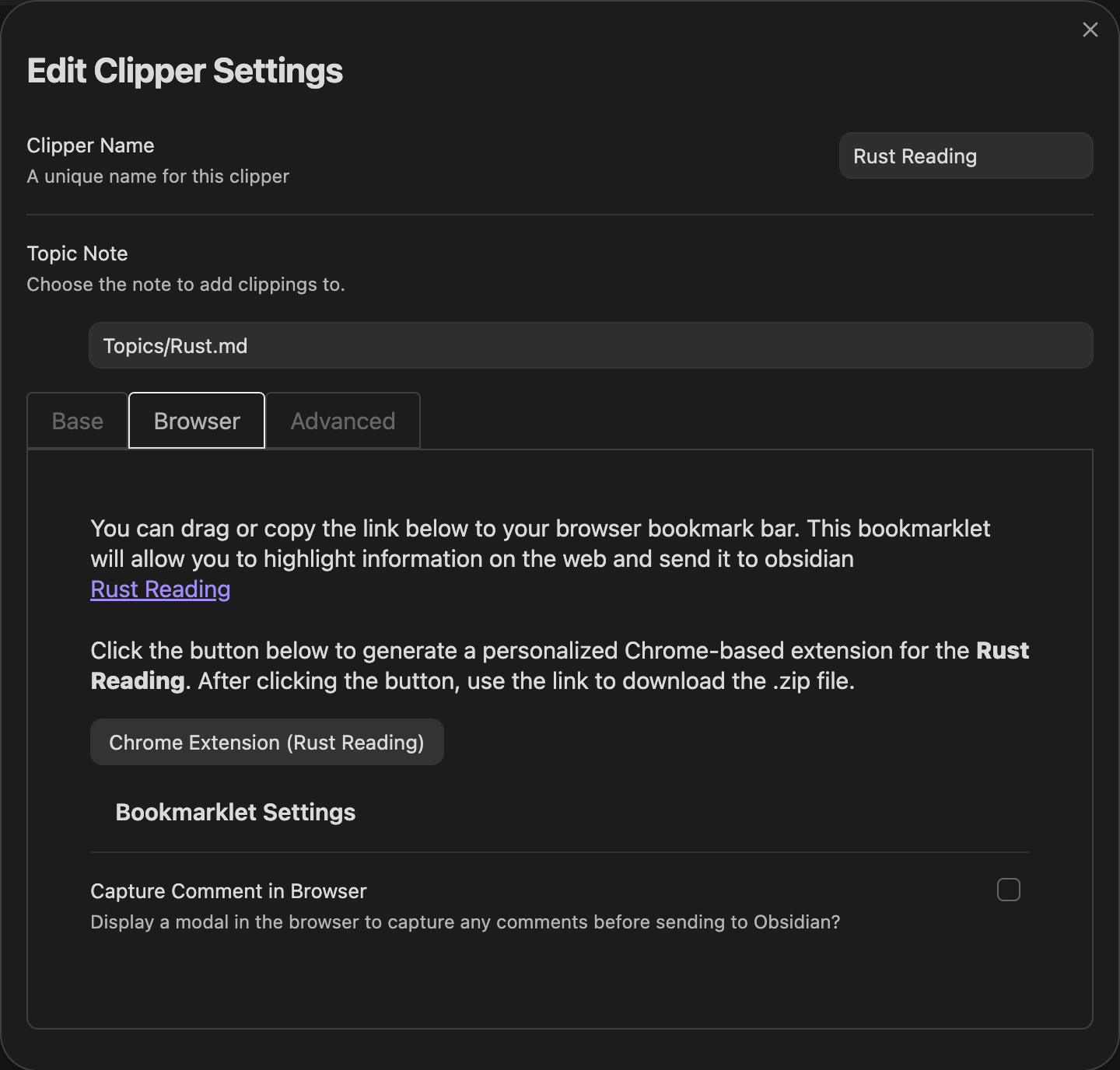
Bookmarklet
The link with the clipper's name is its bookmarklet. Drag it to your browser's bookmarks bar, or right-click it to copy it. See Using the bookmarklet.
Chrome extension
For Chromium-based browsers that don't run bookmarklets, such as Arc, Clipper can generate an extension for this clipper.
- Click Chrome Extension (clipper name). Clipper sends the clipper's name and bookmarklet code to
obsidianclipper.com, which builds the extension. - Click Download Chrome Extension to get the
.zipfile. - Unzip it. In your browser, open the extensions page, turn on Developer mode, click Load unpacked, and choose the unzipped folder.
The extension does the same job as the bookmarklet. Generate a new one after changing any setting that needs a new bookmarklet.
Capture Comment in Browser
When this is on, clicking the bookmarklet opens a box where you can type a comment before the clipping is sent. The comment appears in the entry. See Adding a comment.
The bookmarklet link updates when you change this. Drag it to your bookmarks bar again.