Troubleshooting
Nothing happens when I click the bookmarklet
- Check that something is selected. With nothing selected, Clipper saves only a link, and a canvas clipper shows an error.
- Allow the browser to open Obsidian. The first time, the browser asks whether to open the
obsidian://link. If you blocked it, re-allow it in the browser's site settings. - Check the vault name. The bookmarklet opens the vault it was created in. If you renamed the vault, drag the bookmarklet again.
- Chrome or Edge on Windows refuse selections over about 2000 characters. See Chrome on Windows.
Notices
| Notice | What it means |
|---|---|
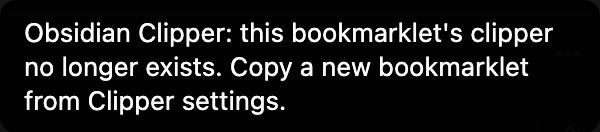
| this bookmarklet's clipper no longer exists | The clipper was deleted. Drag the bookmarklet of an existing clipper and remove the old bookmark. |
| couldn't save the clip for "…" | Writing failed. The rest of the message says why, for example a topic note that was renamed or deleted. Pick the note again in the clipper's settings. |
| couldn't find the canvas "…" | The canvas was moved or deleted. Pick it again in the clipper's settings. |
| found several canvases named "…" | More than one canvas matches. Pick the right one in the clipper's settings. |
| couldn't find the entry template "…" | The template note is missing. The clipping was saved with the default layout. |
| Can't find heading | The heading wasn't in the note at the clipper's Header Level, so Clipper added it. The clipping was saved. |
| turn on the core Daily notes plugin… / turn on the Calendar plugin… | A daily or weekly clipper can't find your daily or weekly note settings. See Requirements. |
| Bookmarklet Migration Needed | The bookmarklet is from 0.x. See Upgrading from 0.x. |
A heading was added twice
Clipper matches the heading's text and level. If your note has ## Clips but the clipper's Header Level is #, Clipper doesn't see it and adds # Clips. Set Header Level to match the heading in the note.
Still stuck
Open an issue on GitHub. Include your Obsidian version, the clipper type, and any error in the developer console (Cmd+Opt+I on macOS, Ctrl+Shift+I on Windows and Linux).