Base settings
The Base tab controls where in the note a clipping goes and what the entry looks like. Its heading names the clipper type, for example Topic Note Entry.
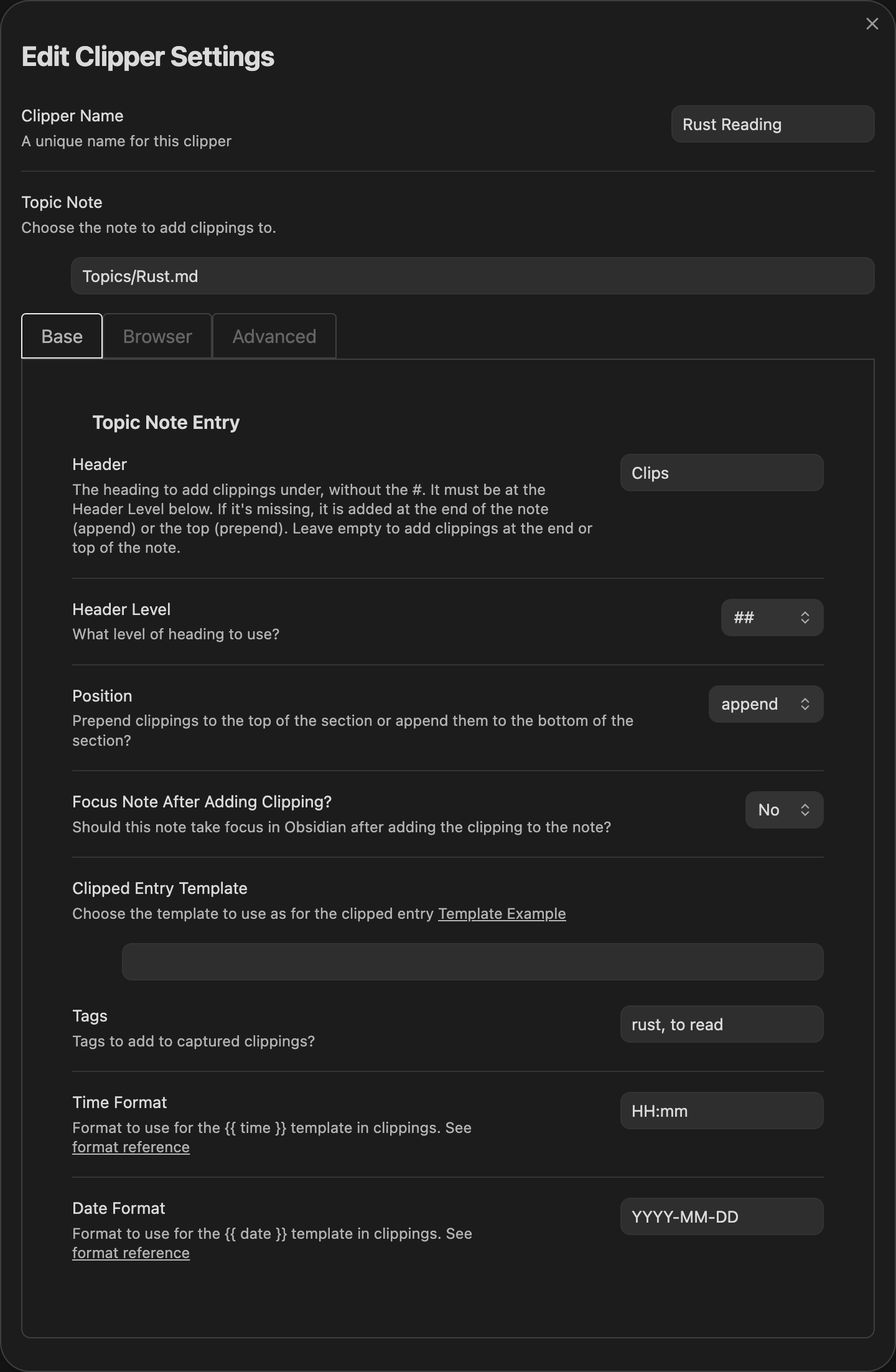
Header
The heading to put clippings under, without the # characters. Leave it empty to write without a heading.
- Clipper looks for a heading with exactly this text at the level set in Header Level. A
## Clipsheading does not match when Header Level is#. - If the heading isn't in the note, Clipper adds it and shows the notice "Can't find heading". With append, the heading goes at the end of the note. With prepend, it goes at the top, after any frontmatter.
- A section runs until the next heading at the same level or higher. Subheadings inside it belong to the section.
Header Level
The level of the heading above, from # to #####.
This also sets how headings inside a clipping are nested. A page's h1 becomes one level below your heading, h2 two levels below, and so on, never deeper than ######. With Header Level ##, a clipped h1 becomes ###.
Changing Header Level means dragging the bookmarklet again. See which changes need a new bookmarklet.
Position
Where in the section new clippings go.
| With a header | Without a header | |
|---|---|---|
| append (default) | After the last line of the section. Blank lines before the next heading stay. | At the end of the note |
| prepend | On the line after the heading | At the top of the note, after any frontmatter |
Focus Note After Adding Clipping?
Yes brings the note to the front after each clipping. If the note is already open in a tab, that tab is selected. Otherwise the note opens in the current tab.
Clipped Entry Template
A note to use as the layout for each entry. Leave it empty for the default layout. See Entry templates.
Start typing the template's path and click it in the list. Choose None to go back to the default layout.
Tags
Tags to add to each entry, separated by commas. rust, to read becomes #rust #toread: spaces inside a tag are removed.
Time Format and Date Format
How {{time}} and {{date}} appear in an entry template. Both use Moment.js format tokens. The defaults are HH:mm and MM/DD/YY.
The time is when Obsidian receives the clipping.